Setting up a conference
This page shows how the conference team sets up and maintains a conference: from creating it, through the settings and stages, to committees and seat planning. How the seats then go to delegations and single participants is covered in Assignment.
The team area
Everything a conference's team works on lives in one shared team area. On the conference dashboard, the Team card leads in. It opens the first page you are allowed to open. Next to it are the links the conference has set (Team Wiki, Services, Preparation) and the Paper Hub, if you may use it.
Inside the team area, the side navigation lists every page your roles let you open, grouped into Team, Workflows, Communication and Maintenance. Press Ctrl+K (⌘+K on a Mac) to open the command palette and jump straight to a page by searching, for example "seat planning" or "emails".
Which pages you see depends only on your roles in this conference. A page you may not open is missing from the navigation and answers with "no access". System administrators may open everything.
Who can do what
| Area | Who may change it |
|---|---|
| Opening Settings | Project Management, Participant Care, Content Lead |
| General, Banking Information, the limits of the school rules | Project Management |
| Status & Features, Links & Content, postal address, templates, layout on the templates, resolutions | Project Management, Participant Care, Content Lead |
| Creating and deleting committees | Project Management |
| Editing committees and agenda items | Project Management, Content Lead |
| The Emails tab | Project Management, Participant Care |
| Seat planning | Project Management, Content Lead |
If you may open the settings but not change a tab, it is locked, and a note at the top tells you what you can change. Participant Care sees the committees read-only.
Creating a conference
Only administrators create new conferences, with Create Conference on the conference overview.
- The conference lead fills in the Conference Request and downloads the generated JSON.
- An admin selects the file on the Create Conference page. It is checked right away, and any errors are shown where they occur.
- After Validation Successful, Create Conference creates the conference and opens its dashboard.
The file describes the basic details, the committees with their nations, the non-state actors and the individual roles. It does not have to be perfect: everything can be changed afterwards in the settings and the seat planning. The file brings no team along. An admin invites the first members in Team Management.
The settings
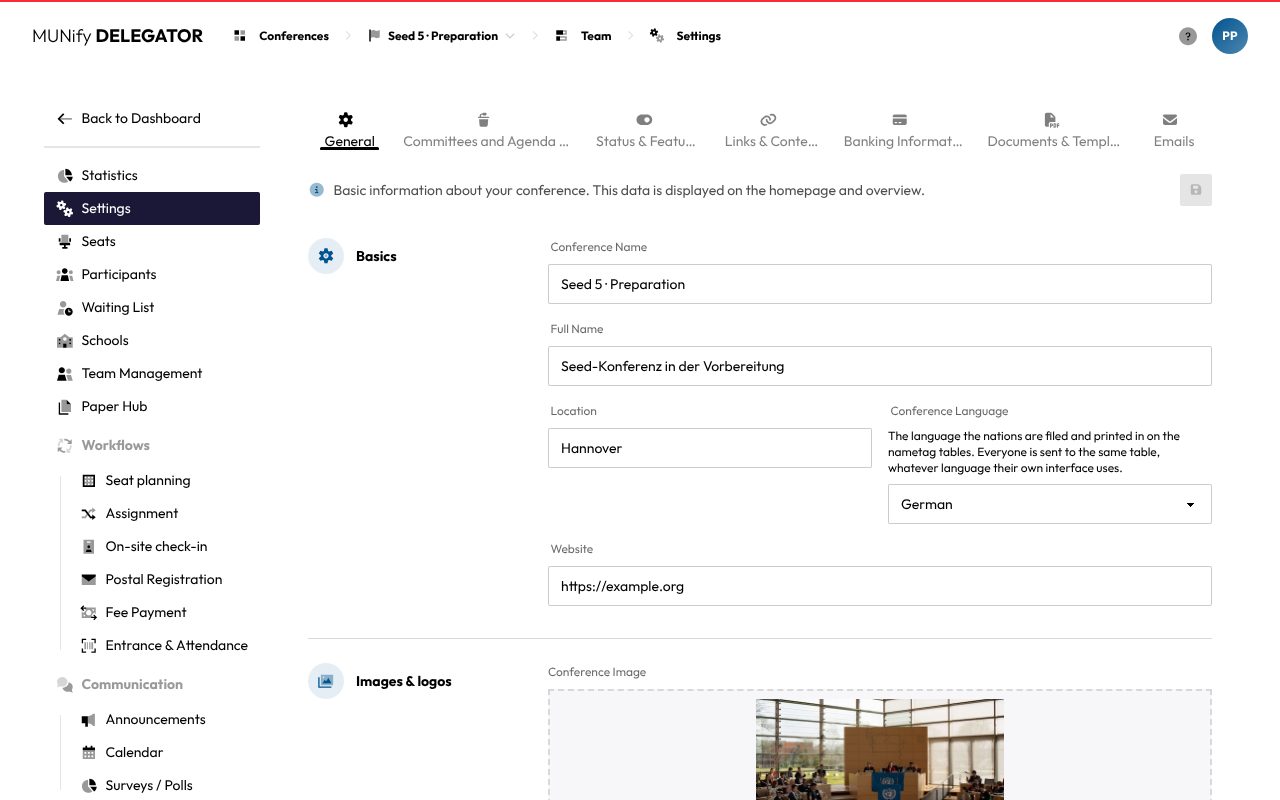
The Settings page splits the configuration into tabs: General, Committees and Agenda Items, Status & Features, Links & Content, Banking Information, Documents & Templates and, for Participant Care and Project Management, Emails. Each tab briefly explains at the top what it is for.
Saving with a preview
Changes in the tabs are not saved right away. A tab with unsaved changes carries a yellow dot, and the button reads Save settings (3 changes). It opens Confirm Save with a list of every change, old and new value side by side. The preview warns in particular about:
- the Conference Status, which immediately controls what everyone can see and use,
- the switches under Features, which unlock or lock a feature for everyone immediately,
- bank details and the fee, which appear on payment requests already sent,
- a new template, which replaces the file stored so far.
Only Save writes it all. If the change makes emails due (payments or postal registration unlocked, the conference ended, a new certificate template), the page then asks Send emails now?. With Later you find them again in the Emails tab.
Outside the form
Committees, resolutions, the layout on the templates and the email texts save right away in their own windows. The save button covers the form fields, the switches in the Emails tab and the Sending speed.
General
- Basics: Conference Name, Full Name, Location, Website and the Conference Language. The nations are filed and printed in this language on the nametag tables, whatever language each person's interface uses.
- Images & logos: the Conference Image, the Conference Emblem (an SVG file for resolutions, otherwise the UN emblem) and the Conference Logo for the dashboard header (otherwise the emblem).
- Schedule: End of the application period, Grace Period (in minutes), Conference start date, Conference end date and the Conference Timezone, which places the "now" marker in the calendar.
Participants only see the end of the application period. The grace period is a buffer for anyone just finishing: only after it does DELEGATOR stop taking applications. Below the field you see when that is in your time zone.
Links & Content
Here you set the Link to the preparation guide, which participants find on their dashboard, and the Team Wiki Link and Services Page Link, which only the team sees on its dashboard. An empty field hides the link.
Banking Information
The Fee and Currency, plus the bank account with Account Holder, Bank Name, IBAN and BIC. Participants see these details when they pay their fee.
Status and stages
In the Status & Features tab you pick the conference's stage under Conference Status. It never changes on its own, only when the team changes and saves it.
| Stage | What it means |
|---|---|
| Before registration starts | Participants only see information and cannot apply yet. |
| Registration Phase | Applications and delegations are possible until the end of the application period plus the grace period has passed. After that, the team reviews the applications. |
| Preparation Phase | Registration is closed and participants prepare. They only see their roles once the assignment is released. |
| Active Conference | The conference is taking place and attendance is tracked. |
| After the conference | Certificates can be downloaded, and so can the adopted resolutions. |
Under Features you unlock individual parts regardless of the stage:
- Allow Payments: participants see how and where to pay.
- Allow Postal Registration: participants can download their postal registration.
- Paper Submission Open: participants can submit papers on their committees' agenda items.
- Show calendar for participants: participants see the schedule. The team always sees it.
The same tab holds the limits of the school rules, which only Project Management can change:
- Decide groups together up to (16 to begin with): up to this many applicants of one supervisor from the same school, all of them get a seat or none do.
- Guaranteed seats per school abroad (12 to begin with): at most this many people of one school abroad can get a guaranteed seat.
The assignment warns when a draft breaks a rule and never blocks anything. Leaving a limit empty switches its rule off.
Documents and templates
The Documents & Templates tab holds everything DELEGATOR builds the participants' paperwork from.
- Postal Registration: the postal address participants send their documents to (Name, Street, e.g. Apartment, ZIP, City, Country). It is printed as the recipient address on the contract.
- Postal Templates: one PDF each for Binding Registration, Parental Agreement, Media Usage Agreement and Terms & Conditions.
- Certificate of participation: the PDF the certificates are printed on.
Each template has its own card showing whether it is Stored, Missing or Uploaded on saving. The eye shows the stored file. A newly picked PDF is only uploaded with Save Settings, after which you can place and test it.
Placing the fields on a template
The templates contain no placeholders. DELEGATOR writes the person's details onto the first page of the PDF, and you decide where with Place fields. The window shows the page, and you drag each field to its spot:
| Document | Fields |
|---|---|
| Certificate of participation | Name (centred), Check-in list with the check-ins the person attended, QR code for the authenticity check |
| Binding Registration | Recipient address, The person's code, Name, Date of Birth |
| Parental Agreement | Name, Date of Birth |
| Media Usage Agreement | Name, Date of Birth, Address |
Resize lists and codes from their bottom right corner, and change the font size of texts with Smaller and Larger below the page. Default puts everything back at the default positions, which also apply until you place anything. Generate test document prints a sample with made-up details using the unsaved layout, and Save keeps it. The terms and conditions are appended unchanged, so nothing is placed there.
Leave room
Leave space on your template where the fields go. Test document on the card shows the result with made-up details. For the postal registration it needs all four templates.
Adopted resolutions
Below the templates, under Adopted resolutions, you upload the resolutions as PDFs, optionally assigned to a committee (at most 10 MB per file). Participants download them once the conference is over. They are saved right away, not with the save button.
Emails
DELEGATOR writes to participants, supervisors and the team at important steps. The Emails tab shows each kind of email as a card, grouped by topics such as Assignment result, Waiting list, Reminders or After the conference. Each card explains under When, To whom and Content what it does, and counts how many were sent, failed or skipped. Each email reaches each person at most once.
- When a card shows, say, 3 open, three people should get the email right now. Send now sends it in the background. Skip marks it as skipped, which cannot be undone. People who qualify later still get it.
- Send automatically lets a kind go out on its own regularly. A new conference sends nothing automatically until you switch it on. If people already meet the condition, DELEGATOR asks whether they get the email with the next run (Send to all 3 automatically) or only future cases do (Only future cases).
- The switches take effect with the settings' save button and appear in its preview.
- Cards marked Sent by hand (the team invitation, the found badge) have no switch: they go out when someone triggers the action.
Texts and footer
Edit text opens an email's Subject, Heading and Text, in one tab per language, since every email goes out in the recipient's language. DELEGATOR fills in Placeholders such as {conference} when sending. The greeting and the button are added automatically. Next to it you see a preview with made-up details, addressed to you. An empty field falls back to the default, and Default text restores it. Kinds you changed carry Own text.
The Footer of all emails appears under every email the conference sends, the automatic ones and those to the team, for example a signature or contact details. It too exists per language. Saved empty, it is dropped in that language.
Sending speed
Many mail services accept only so many emails per second. Under Sending speed you set Emails per second at most, which "Send now" and the automatic sending keep to. Empty means No limit.
At the bottom, the Log shows the last 200 emails of the conference, automatic and sent by hand.
Committees and seats
In the Committees and Agenda Items tab you manage the conference's committees and their agenda items.
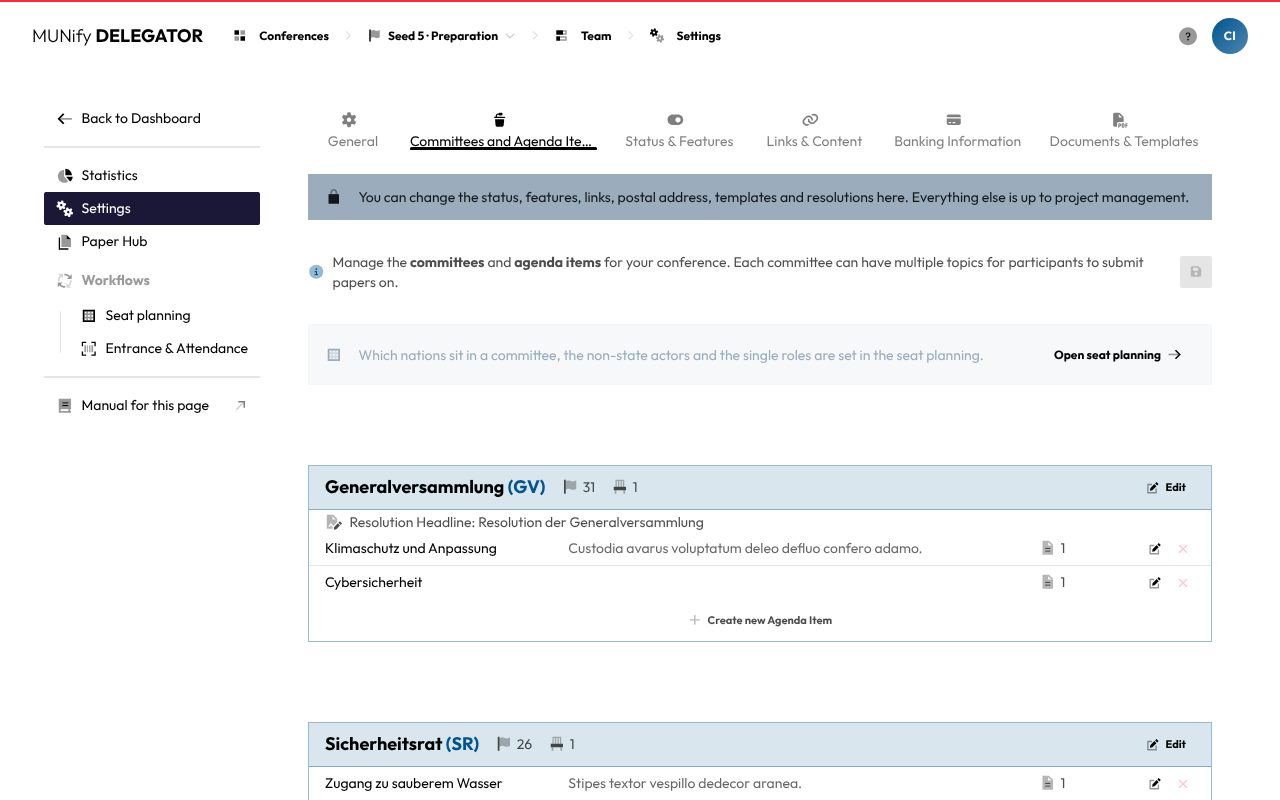
- Add committee creates a committee with Name, Abbreviation and Seats per delegation.
- Edit changes the name and abbreviation, the Seats per delegation and the Resolution Headline, a custom headline for resolutions, for example to get a gendered article right in some languages.
- Create new Agenda Item adds a topic with Title and Teaser Text. Delegations submit their papers on these topics. Deleting a topic that has papers deletes them too, and you confirm it by typing the title.
- Delete removes a committee with its agenda items and every seat in it. This is not possible while delegates are assigned to it or papers are submitted.
Seats per delegation sets how many delegates of one delegation sit in this committee. Values below the largest group already assigned are rejected. Which nations sit in a committee is set in the seat planning.
Seat planning
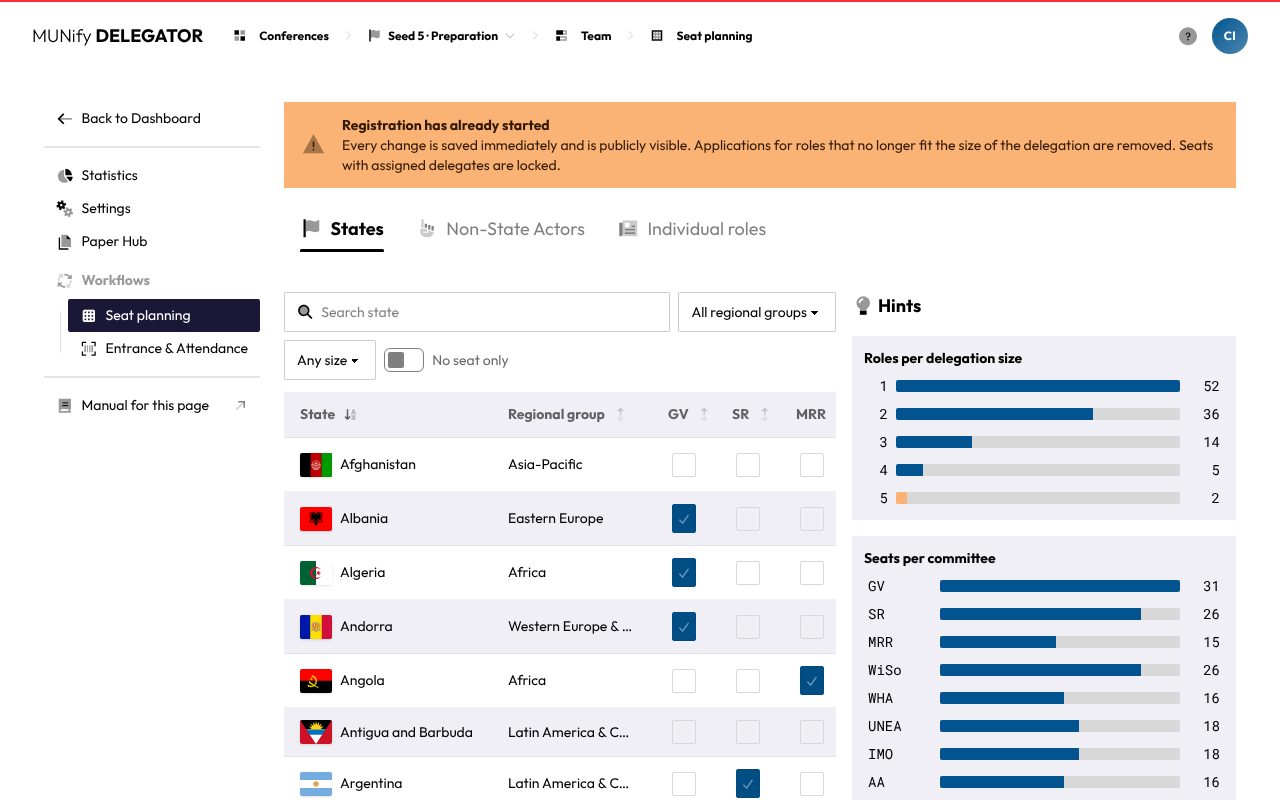
Seat planning distributes the seats of states and non-state actors across the committees. It decides which roles exist and how large the delegation for each one is. It has three tabs: States, Non-State Actors and Individual roles.
States
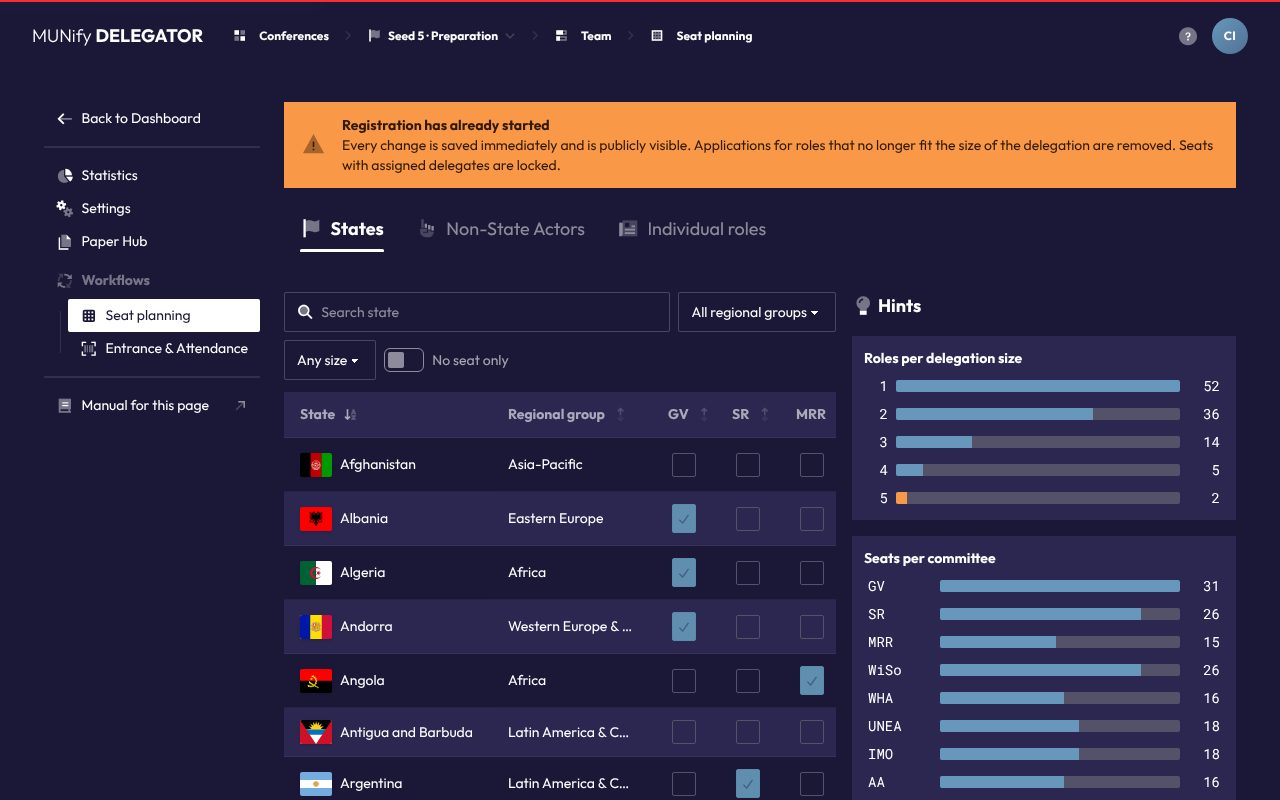
The matrix lists every UN member state as a row and the committees as columns. Clicking a cell gives the state a seat in the committee or takes it away, and the message that follows offers Undo. The Σ column shows the delegation size: the seats per delegation added up over every committee the state sits in. A size of 1 is marked yellow, since a delegation of a single person is impractical.
Above the matrix you search for a state (Search state) and filter by Regional group, Delegation size or No seat only. Clicking a column header sorts. Pointing at a state shows its capital, region, regional group, languages and neighbours. The last row counts the seats per committee.
Non-state actors and individual roles
Under Non-State Actors you create actors with Name, Abbreviation, Description, Icon and Seats, which is the size of their delegation. Under Individual roles you create roles for single participants, such as the conference press. Here the Seats decide how many people can be given the role, and Assigned counts how many already have it. Fields save when you leave them, and the plus in the last row creates a new role. A role still assigned to someone cannot be deleted.
Hints
Beside the matrix, the Hints column collects what stands out:
- Seats per committee and Roles per delegation size give an overview of the sizes.
- Size limits marks roles outside a Min. and Max. delegation size. The limits are only stored in your browser.
- Every delegation should be able to choose between at least three roles of exactly its size. The hints name sizes with too few roles, states that are one seat away, and single-seat roles.
- States without a seat counts the states without a seat per regional group. A click filters the matrix to them.
- Regional balance compares each committee with its Baseline and suggests which state could gain or give up a seat. As the baseline you pick, per committee, UN 193 (the default), Human Rights Council, ECOSOC, Security Council or Manual with your own targets.
After registration starts
Once the conference is no longer Before registration starts, the page shows Registration has already started. Every change is saved immediately and is publicly visible. Applications for roles that no longer fit the size of the delegation are removed. Seats with assigned delegates are locked and show a padlock.