Your conference dashboard
A conference's dashboard holds everything about your participation: your application, your role, the formalities still open and, at the end, your certificate. What you see depends on how far along the conference is and how you take part (in a delegation, as a single participant or as a supervisor).
Guided tour
The help button (the question mark in the header) offers a guided tour of this page.
At a glance
The conference header with its title, dates and stage is always at the top. Below it, the content changes with the stage:
- Registration: your application, your delegation's members, your delegation preferences and your texts.
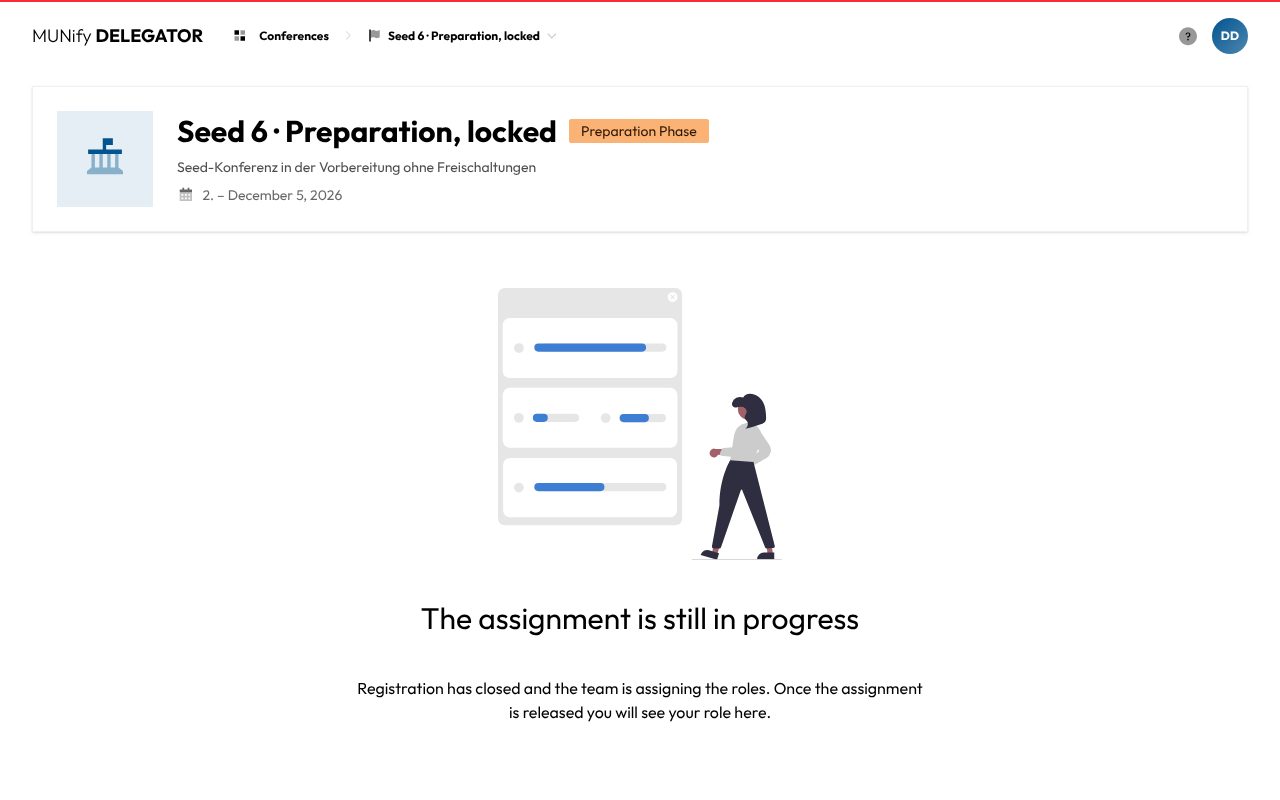
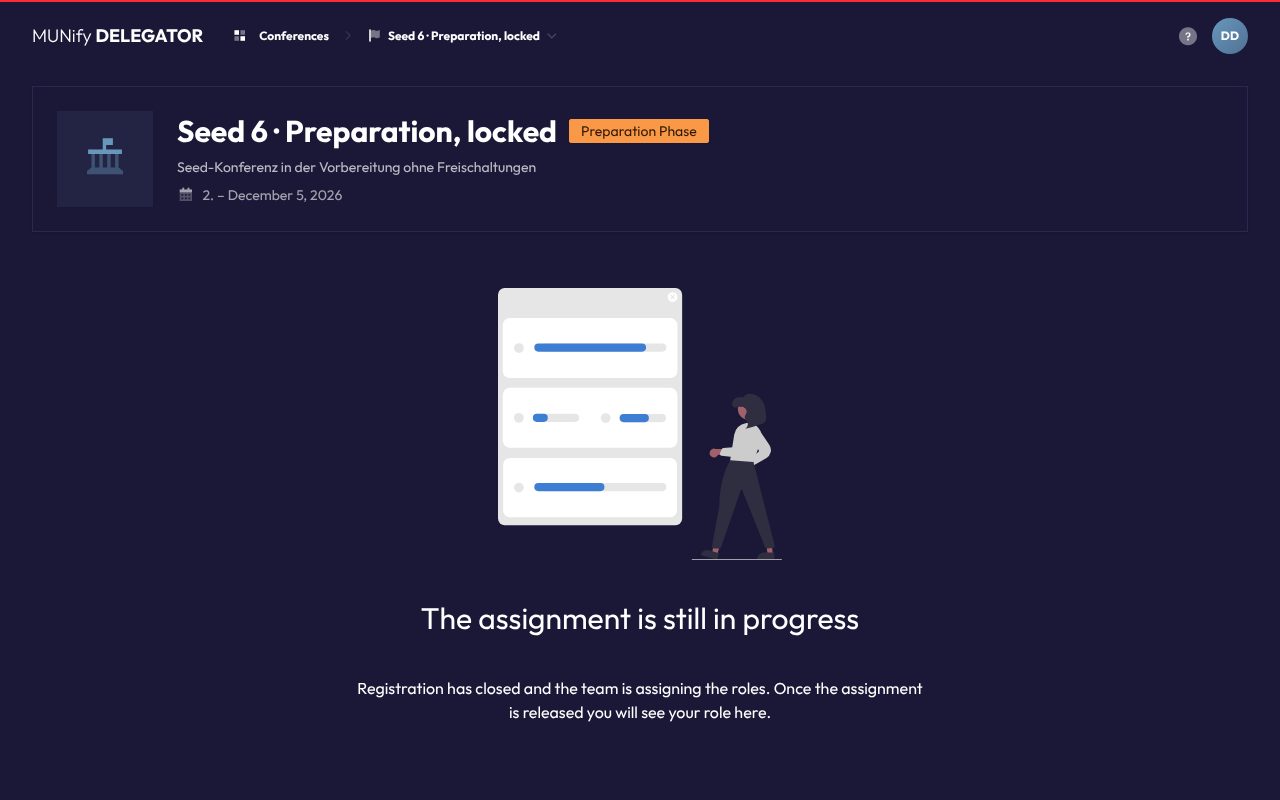
- After the deadline: the notice Selection process in progress, then The assignment is still in progress until the team releases the assignment.
- Preparation: your role, your Personal Status with payment and postal registration, the Quick Links and the surveys.
- During the conference: the same, plus your digital nametag and the check-in.
- After the conference: your Certificate of participation.
If you are not taking part in the conference yet, you see the application instead. How that works is described in Registration.
While registration is open
Your application
The Your application section shows what is still open and the Application deadline. In a delegation there are three tasks:
- Invite people: a delegation needs at least 2 members.
- Enter delegation preferences: at least 3 countries or non-state actors.
- Answer questionnaire: the questions about motivation and experience.
Once all are done, the head delegate completes the application with Complete registration and participate in the selection process. After that, nothing can be changed.
Complete it in time
Only completed applications take part in the selection process. Having created a delegation is not enough.
Delegation members and entry code
Under Delegation Members you see every member and the auto-generated Delegation Name. Mention this name when you talk to participant care.
As long as the application is not completed, this is also where the entry code is, which others use to join your delegation. Next to it you can:
- Copy code or Copy join link to pass either on,
- Copy supervisor link so your supervisors can register,
- Show QR code so others can scan the link directly,
- Rotate Code (head delegate only) if the code got into the wrong hands.
What joining looks like from the other side is described in Joining a delegation.
The head delegate
Whoever creates the delegation is its head delegate at first. Only the head delegate can edit the preferences and the texts and complete the application. Until then they can also Make Head Delegate or Remove member for any member. Everyone else sees the same sections but can only read them.
Delegation preferences
Under Delegation Preferences the head delegate uses Set Preferences to choose from the Nations Pool and the Non-State Actors. Only roles with enough seats for every member of your delegation are offered. You can change the order of your preferences with the arrows.
Information and motivation
Here you answer why your delegation is applying and how much experience you have with Model United Nations. Above that, everyone gives their own School / Institution (see Your school).
Supervisors
If you take part with supervisors, such as a teacher, you see them under Supervisors. With Connect Supervisor you enter their invitation code, check the data shown and click Connect. Only participant care can undo the connection. If you opened a link from your supervisor, the code is already filled in.
Danger Zone
Until the application is completed you can Leave Delegation here (if there is more than one of you). The head delegate can also Delete Delegation. Your delegation ID is here too, in case support asks for it.
As a single participant
If you apply alone for an individual role, your dashboard looks similar. Your tasks are Apply for one (or more) roles and Answer questionnaire. Under Role Applications you add more roles with Add another application. In the Danger Zone you can withdraw with Delete all applications. You complete the application yourself. More in Applying as a single participant.
After applying
Once the application deadline has passed, the dashboard shows Selection process in progress. Below it is either Application completed (you take part in the selection process) or Application not completed (you cannot be considered). A completed application does not guarantee a seat.
When the team has handed out the seats but not released them yet, you see The assignment is still in progress. Only with the release do you learn which role you get. You will be notified by email, so there is no need to ask.
Not accepted
If your application did not get a seat, you see Application Rejected. While the conference is being prepared or running, you can put yourself on the waiting list below it with Join the waiting list now. Seats from there are given out first come, first served. More in The waiting list.
During preparation
With the release you see whom you represent. This is a head delegate's dashboard with everything unlocked:
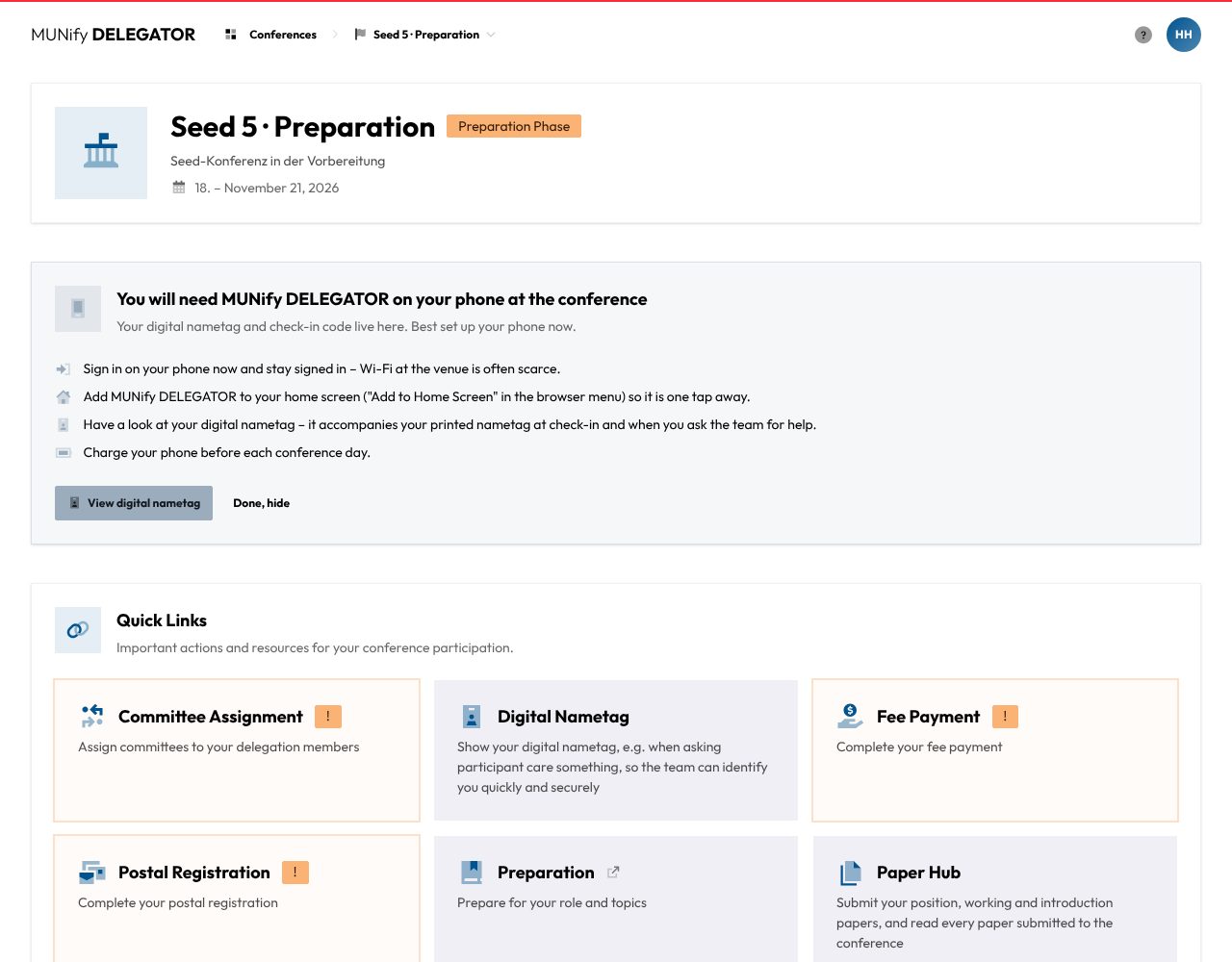
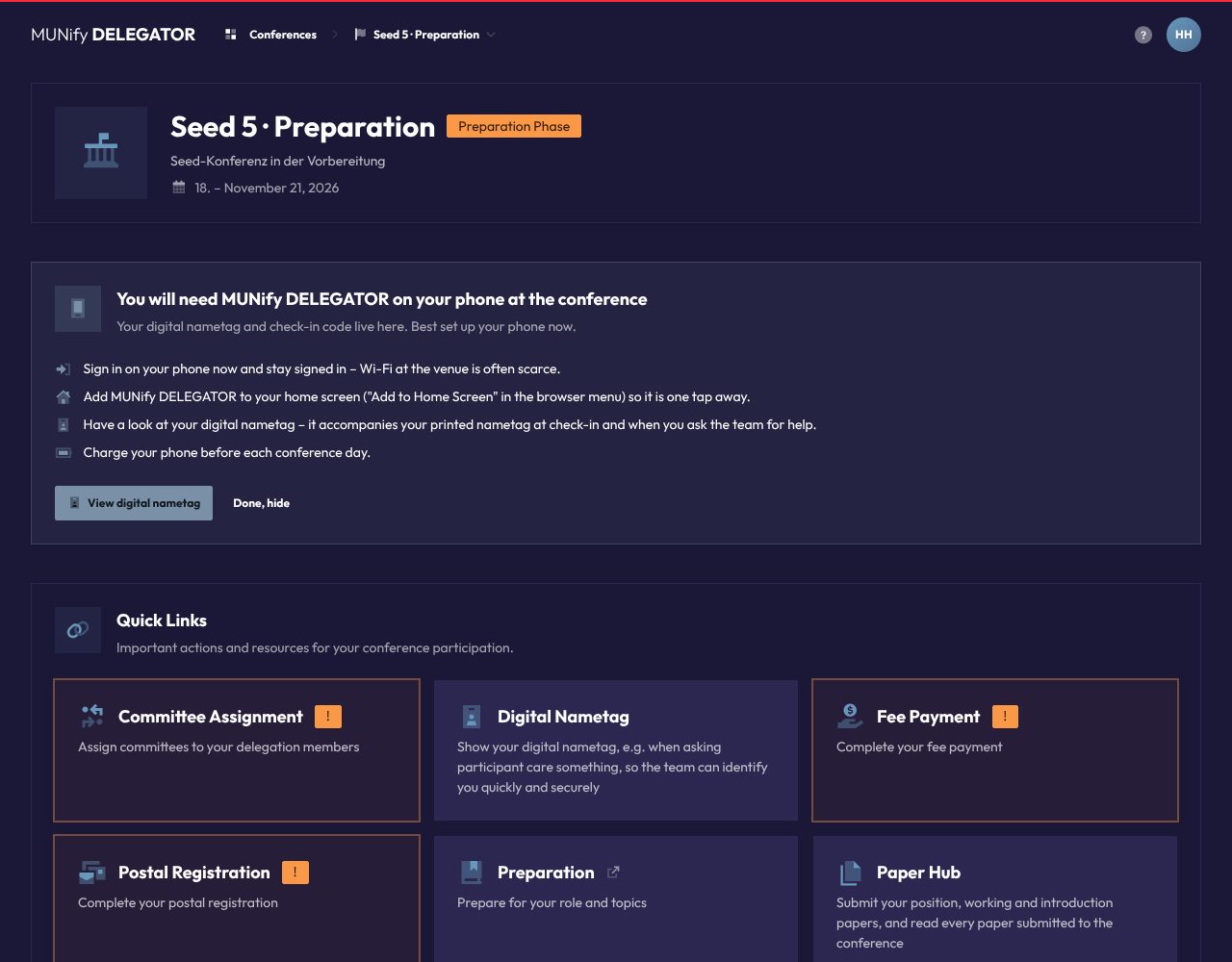
- Quick Links: cards for everything there is to do now. Cards marked ! still need something from you. Greyed out cards have not been unlocked by the team yet.
- Personal Status: your formal steps: Registration, Fee Payment, Binding Registration, for minors the Parental Agreement, the Media Usage Agreement and open surveys. You cannot take part without all of them. Each step is Completed, Pending, Problem or Not unlocked yet. It stays pending until participant care has ticked it off.
- Delegation Status: the country or non-state actor your delegation represents and the committees you sit in.
- Delegation Members: every member with their committee, payment and registration status.
- Information on your country or Information on your NSA.
As a single participant you see your Role instead of the delegation status and members.
When paper submission is open, the Paper Hub card takes you there. That is where you submit position, working and introduction papers and read everyone else's.
Payment
The Fee Payment card opens the payment page once the team unlocks payments. You pay the participation fee by bank transfer:
- If you are in a delegation or a supervisor, Pay for others too lets you cover several people with one transfer and select them.
- Click Generate Transaction Reference.
- Transfer the amount with exactly the Reason shown. Scanning the GiroCode with your banking app is easiest.
This reference is the only way the team can match your payment. Once it has arrived, the page says Your fee is paid and the card disappears from the quick links.
From abroad
You bear the cost of an international transfer yourself. It must not be deducted from the amount that arrives.
Postal registration
The Postal Registration card lets you download your documents once the team unlocks them. First check your address and date of birth. If something is missing, add it with Update Profile. Then click Download Documents. The PDF contains:
- the binding registration, which you sign yourself,
- the declaration of consent from all parents or guardians, if you are not of legal age when the conference starts. Normally both parents sign it,
- the declaration of consent for image use, signed by you and, for minors, by your parents too.
Print the documents, sign them and send the originals by post to the address on the page. A scan or an electronic signature is not enough.
Committee assignment
If your delegation represents a country, you decide yourselves who sits in which committee. The head delegate sees the Committee Assignment card in the quick links for this, as long as some members have no committee yet.
The page lists the committees with your delegation's seats at the top and every member below. Pick a committee for each member and click Save. Full committees can no longer be picked.
Final
Saved assignments cannot be changed. Agree on them in your delegation first.
The other members can only view the page and see Not yet assigned until then. Delegations of a non-state actor sit in no committee and need no assignment.
Conference information
Whatever the team wants everyone to know is under Announcements, right below the conference header. Expand long announcements with Show more.
The quick links also hold:
- Preparation: the conference's preparation guide, if the team has linked one.
- Seats of the Conference: every committee and agenda item, country and non-state actor.
Schedule
Once the team switches the schedule on, the Schedule card appears. Right on the dashboard it shows what is happening now and what comes next. A click opens the conference's whole schedule, day by day. Some sessions are only for those who picked a particular answer in a survey.
Surveys
Under Surveys / Polls you register for events, for example, or the team asks for important information. Choose an answer with Take Survey and change it with Change answer until the deadline. Fully booked answers can no longer be picked. Open surveys also show up under Personal Status.
Your school
Everyone gives their own School / Institution, within a delegation too. During registration the field is under Information and Motivation, for supervisors under Your details. With Change school you pick an existing school or enter a new one. It is optional.
At the conference
During preparation the dashboard reminds you to set up MUNify DELEGATOR on your phone: sign in, stay signed in and add it to your home screen. Wi-Fi at the venue is often scarce.
- Digital Nametag: this card shows who you are and which role you have, with a code the team scans. Show it when you ask participant care something.
- Check-in: scan the QR code at the entrance with your phone. The page tells you which Table to go to. If something is still open for you, such as the payment or your guardians' consent, it says Please go to participant care with what is missing. After the scan the page shows Already checked in.
After the conference
Once the conference is over, the dashboard shows your role and the Certificate of participation. Download certificate gives you the PDF. This only works if you attended the conference. If it says Certificate not yet available. Please come back later., check back later. If the team has uploaded resolutions, you can download them under Adopted resolutions.
For supervisors
As a supervisor you follow how your students are doing. For privacy reasons you cannot add them yourself: they connect with you. How to register is described in Registering as a supervisor.
- Connect with students: your invitation code. Pass it on, copy the link with Copy join link or show the QR code. Rotate Code gives you a new code.
- Your details: your Own presence at the conference and your school. Whether you attend yourself can only be changed during registration. If you attend, you pay the participation fee too.
- Delegations and Single Participants: every application of your students. During registration you also see the delegations' entry codes. Anyone who has not added you shows up as Hidden Member.
After the deadline you see which of your students take part in the selection process. Until the release it then says The assignment is still in progress. After that, the Delegation Statistics show how your students are doing and the Personal Status section shows your own steps, until everyone has paid. Through Fee Payment you can also pay for your students. If a committee assignment is still missing in one of your delegations, the dashboard points it out. Rejected Participants lists who did not get a seat. If nobody was accepted, you see Application Rejected. After the conference you find your own Certificate of participation here and how many of your students were accepted.