Assignment
Under Assignment, participant care hands out the conference's seats: nations and non-state actors to delegations, individual roles to single participants. Project management and participant care can open the page.
The work is spread across the tabs Introduction, Sighting, Weighting, Single participants, Assignment and Finish. You can switch between them at any time and work in any order. In the top right corner the page always shows how many changes are planned (6 planned changes, a click takes you to the finish tab) and whether the assignment is Released or Not released.
Draft, apply, release
The assignment runs in three separate steps:
- Draft: everything you plan in the tabs sits as a draft on top of the real applications. It changes nothing in the registrations, the whole team sees and edits it together, and you can discard it at any time.
- Apply: in the Finish tab you write the draft into the registrations. Only then are delegations split and merged and roles given or taken away. Afterwards the draft is empty, ratings and weights are kept.
- Release: the release only decides whether participants and supervisors see their roles. Until then their dashboard only tells them the assignment is still in progress. Releasing sends no emails, the page offers you the result emails afterwards.
Seat planning comes first
Which roles exist, with how many seats, is set beforehand in the seat planning and the committees. The assignment only hands out what is set up there.
Sighting
In the Sighting you go through every application one by one, delegations and single participants in one deck. A progress bar shows how many have been reviewed (10 of 250 reviewed).
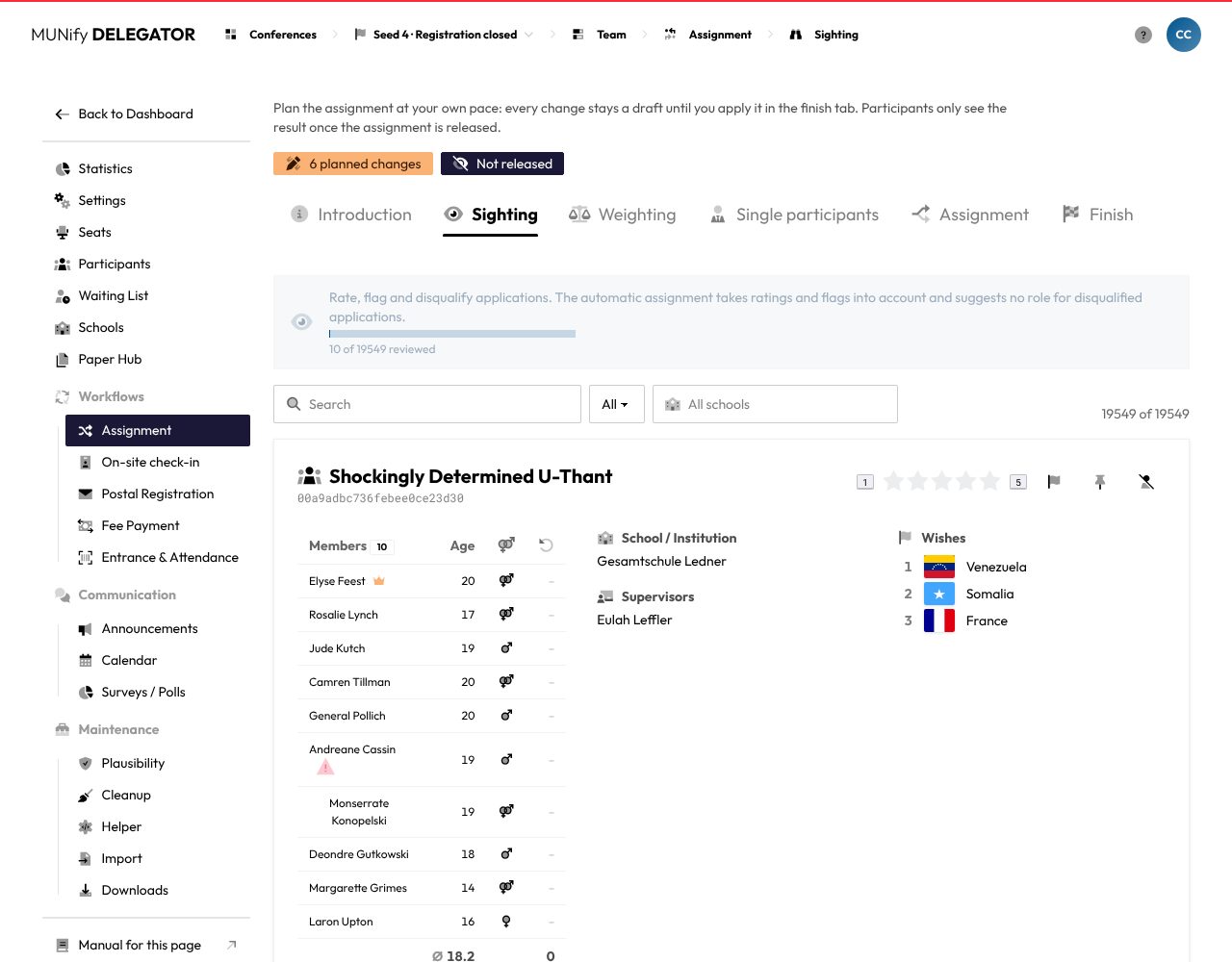
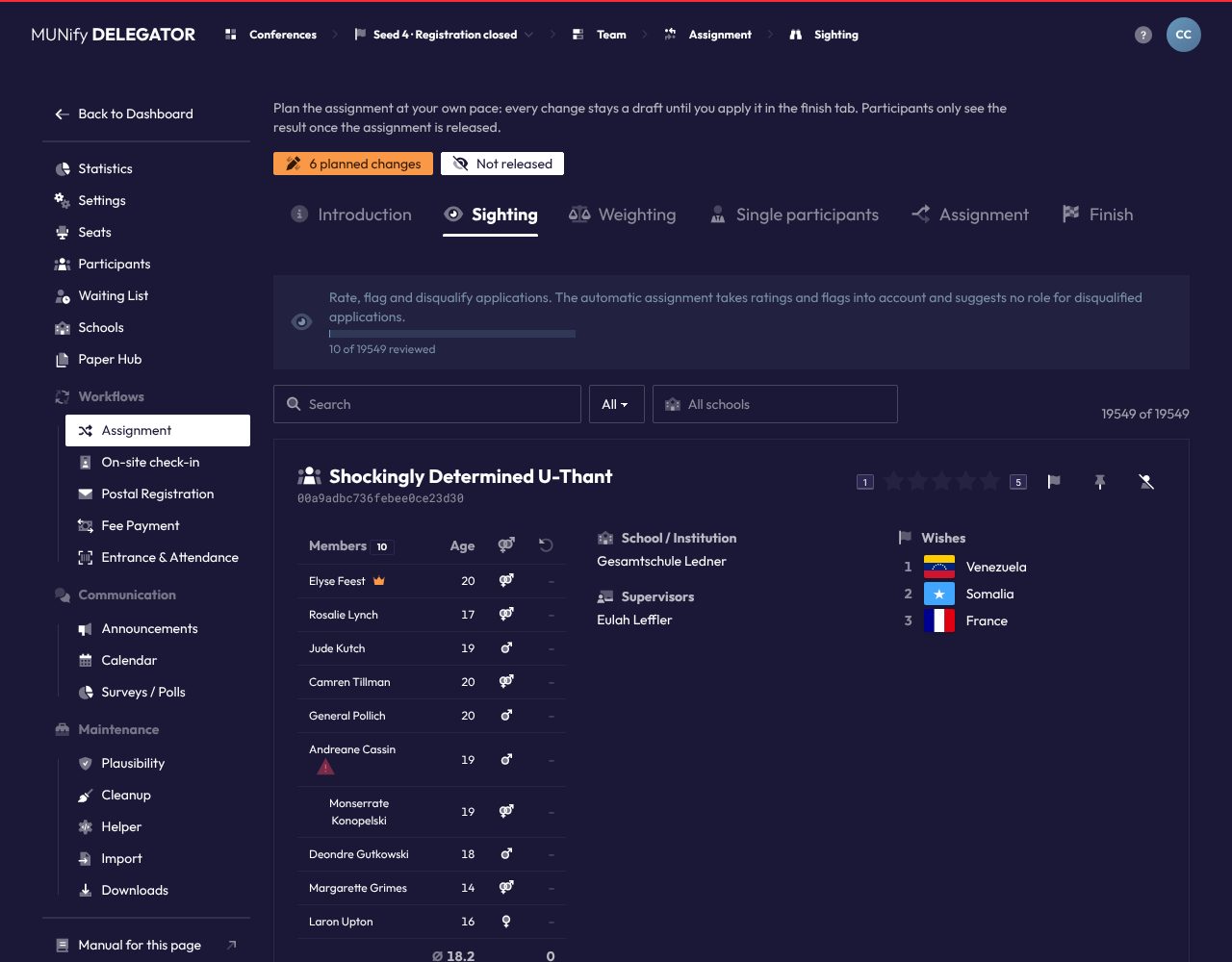
Each card shows the application: for a delegation its codename, the members with age and previous conference participations, schools, supervisors, the wished roles in their order, Motivation and Experience. A red warning next to a name points to a note by participant care, for example about earlier behavior, also from an older account confirmed to be the same person. Clicking a name opens the person's user card.
Rating
In the top right corner of the card you rate the application:
- Stars: 1 to 5 stars, halves included. Unrated applications count as Not reviewed yet.
- Flag: marks an application that stands out to you. How much a flag counts is set in the weighting.
- Must get a seat: the automatic distribution seats this application before all others, and the finish tab warns if it would be left out.
- Disqualify: disqualified applications get no role from the automatic distribution and only show up in the assignment's lists when you ask for them.
Must get a seat and Disqualify rule each other out: setting one removes the other. Below, the Note field holds whatever the team should know. The note is saved when you leave the field, everything else right away, for the whole team.
Moving through the applications
Below the card, a strip shows the applications around the current one, colored by status, and a slider jumps to any place in the deck. Previous, Next and Next unreviewed turn the cards with a click.
Keyboard shortcuts
- ← and →: previous and next application
- N: next unreviewed application
- 1 to 5: give stars
- Ctrl/⌘ + D: clear the rating
The keys do nothing while you are typing in a field.
Filtering and searching
The Status field limits the deck to All, Not reviewed yet, Rated, Flagged, Disqualified or With a note. The school field next to it filters by one school or by No school. A delegation matches when any of its people has that school.
The search looks through names, codenames and ids, schools, the application texts, members, supervisors, their email addresses and the notes. It shows the best matches, and a click (or Enter for the first) opens the application in the deck.
Weighting
The automatic distribution looks for the distribution with the lowest total cost for all open groups of one size at once (the Hungarian method). In the Weighting you set how wishes, ratings, flags and experience count towards that cost. Lower costs are better.
- Rating
- Average rating: the number of stars from which an application counts as better or worse than average. Applications without a rating are treated as if they had exactly this rating. The default is 2.5.
- How much the rating counts: how many cost points each star of distance from the average is worth. At 0 the rating is ignored.
- Flags
- Bonus for flags: taken off the cost of flagged applications. A negative value works against them. The default is 0, so at first flags have no effect.
- Effect of the flag bonus: with Seating only the bonus only decides who is left out when there are more groups than roles. With Seating and weight of wishes the wishes of flagged groups also count more in contested roles.
- Experience
- Modifier for experienced participants: added to the cost of groups whose members were seated at an earlier conference, scaled by how many of them were. Positive values count against experienced groups, negative values in their favour.
- Effect of the modifier: the same choice as for flags.
The wishes themselves always count: a seat wished for further down costs much more than a first wish, and the distribution only hands out a role nobody wished for once no wish is left free.
Next to the form, the Example costs show what a few typical applications would cost with your values, and What these settings do describes the effect in words. Reset to defaults fills in the default values. Nothing is stored until you click Save.
Single participants
In the Single participants tab you hand out the individual roles, such as the conference press. On the left are the single participants without a role, on the right the individual roles with their seats.
- Drag a person onto a role to give it to them, or back into the pool to take it away. People who did not apply for that role are listed first in it and highlighted.
- Drag a person onto Turn into a delegation to make them a delegation of their own. In the Assignment tab they can then get a nation or a non-state actor. Revert undoes it.
- Assign automatically hands out the free seats of the individual roles to every single participant without a role. Each person only gets a role they applied for. If none of those is free, they stay without a role. Who is left out when a role has too many applicants is decided by rating, flag and experience. Disqualified applications are left out, those marked Must get a seat go first. Roles planned by hand stay as they are.
Assignment
In the Assignment tab you hand out nations and non-state actors to delegations.
Group size and pool
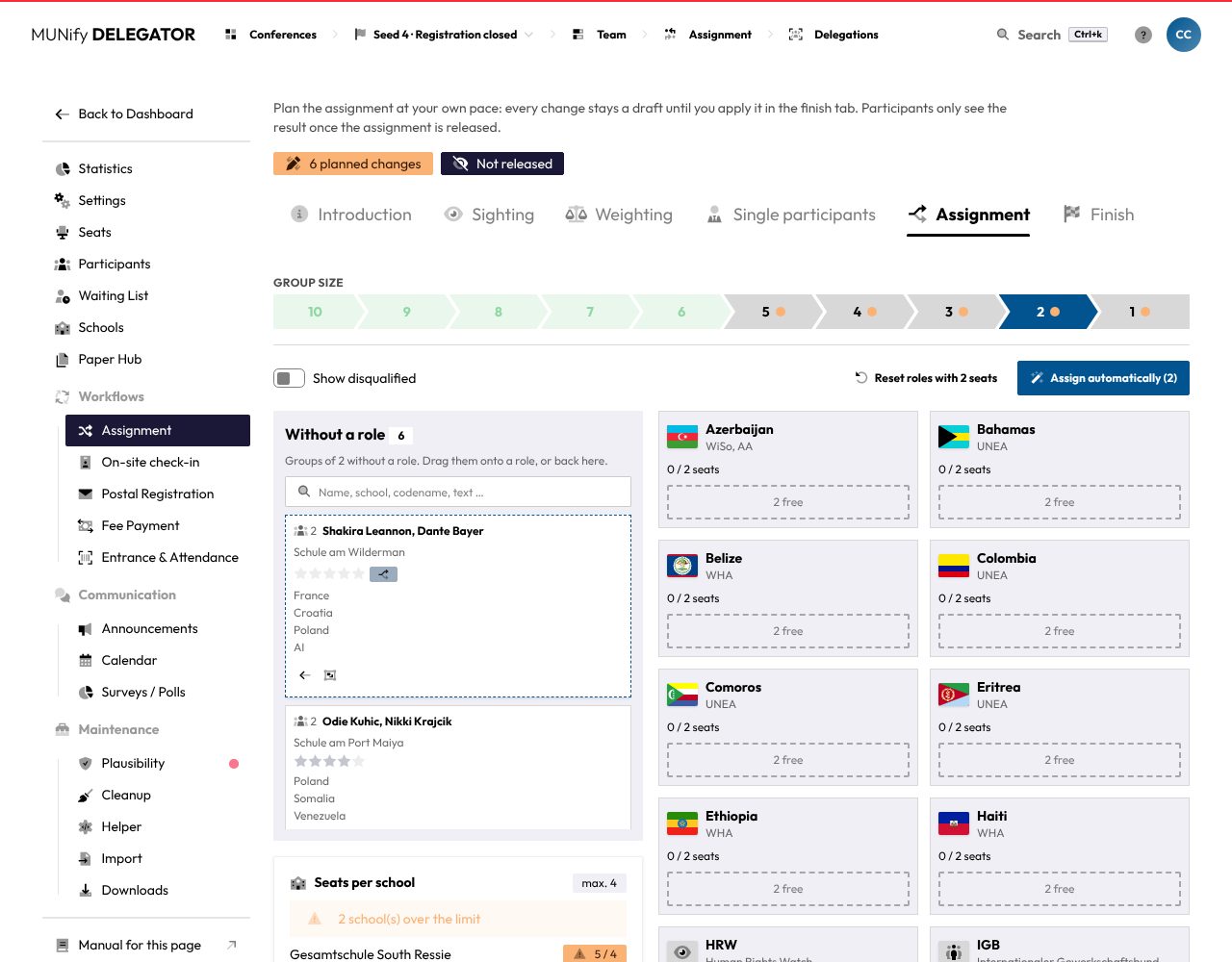
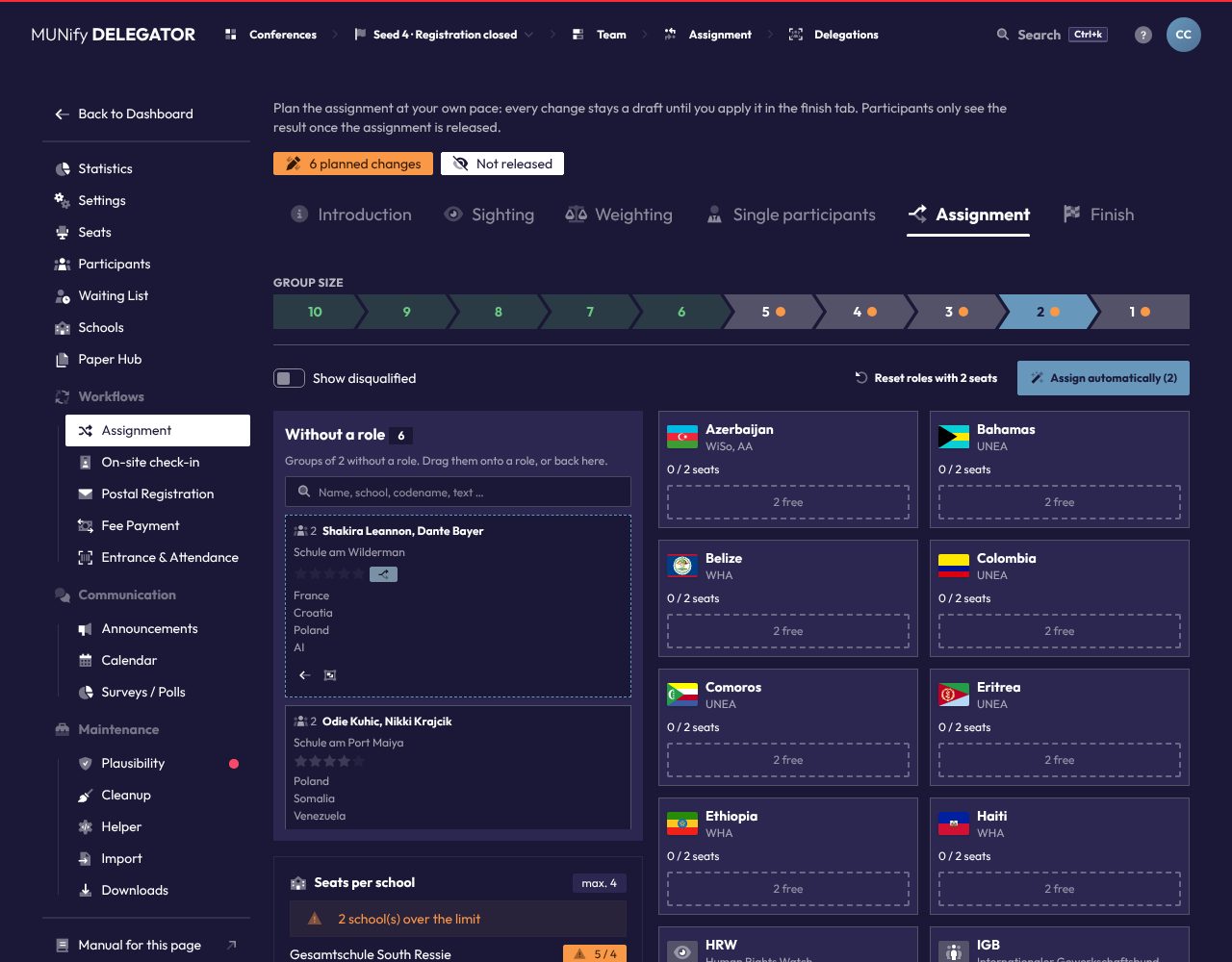
On top you pick the Group size. The board then shows, under Without a role on the left, the groups of that many people that have no role yet, and on the right the roles with exactly that many seats. A dot on a size means roles are still free there, a green size has all its roles taken.
The pool is ordered like this: first the applications marked Must get a seat, then the rated ones from the best down, then the rest. The pool search looks through name, school, codename and texts, and points out matches at other group sizes. The Show disqualified toggle shows disqualified applications.
Each card shows the people, their schools, the rating, flags and the wishes. The wish matching the role the group is on is marked green, a role it did not wish for yellow with a warning sign. Such groups are listed first in their role. The arrow on the card opens the application in the sighting.
Assigning by hand
Drag a group onto a role to give it that role, or back into the pool to take it away. A role only takes a group when it has enough free seats (2 / 3 seats). Otherwise the board says This role does not have enough free seats. How many seats a nation has follows from the seat planning.
When several groups end up on the same role, applying merges them into one delegation: into the delegation already holding the role, else into the largest one going there whole, else into a new one.
Splitting delegations
If a delegation does not fit the free roles, split it with Split on its card. In the dialog you drag each member into a part, add more with Add part, or divide into equal parts with the round buttons at the bottom. Every member has to be in exactly one part, and a split needs at least two parts.
Each part then shows up as a group of its own size and is assigned on its own. Applying turns the parts into delegations of their own. Undo the split on a part merges the delegation back together. If someone joins the delegation after it was split, the board warns that they are in no part. Split the delegation again then.
Assigning automatically
Assign automatically (3) distributes every open group of the chosen size in one pass, following the weighting. It works like this:
- It only uses roles with exactly as many free seats as the group has members. A role a group would only partly fill is yours to assign by hand.
- Wishes come first: the distribution seats as many groups as possible on one of their wishes. Only what is left over goes to groups without a free wish.
- Applications marked Must get a seat are seated before all others whenever a role fits. Which role still follows their wishes.
- Disqualified applications get no role.
The result lands in the draft just like an assignment by hand, so you can check and change it. Reset roles with 3 seats takes the role off every group in the draft that sits on a role with that many seats.
School rules
Below the pool, School rules shows where the draft breaks the conference's rules about schools. The applicants of one supervisor from the same school all get a seat or none do, up to a group size of 16. People of a school abroad get at most 12 guaranteed seats per school, and every person counts for their own school. The board warns about groups of which only some would get a seat or are disqualified, and about schools abroad with too many guaranteed seats. It does not stop the assignment. You set the limits in the conference settings, leaving one empty switches its rule off.
Finish and release
In the Finish tab you check what the draft does, apply it and release the assignment.
Checking the planned changes
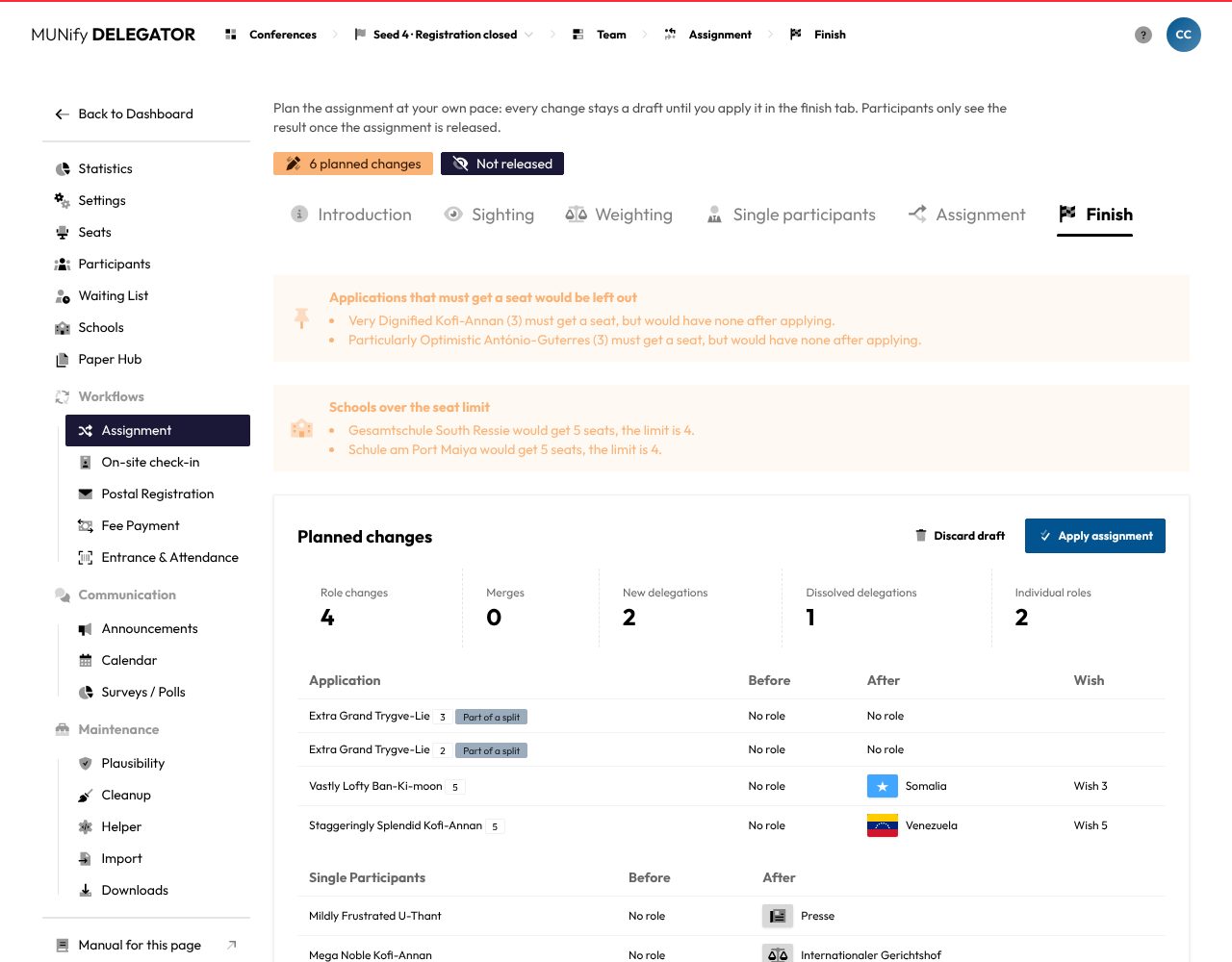
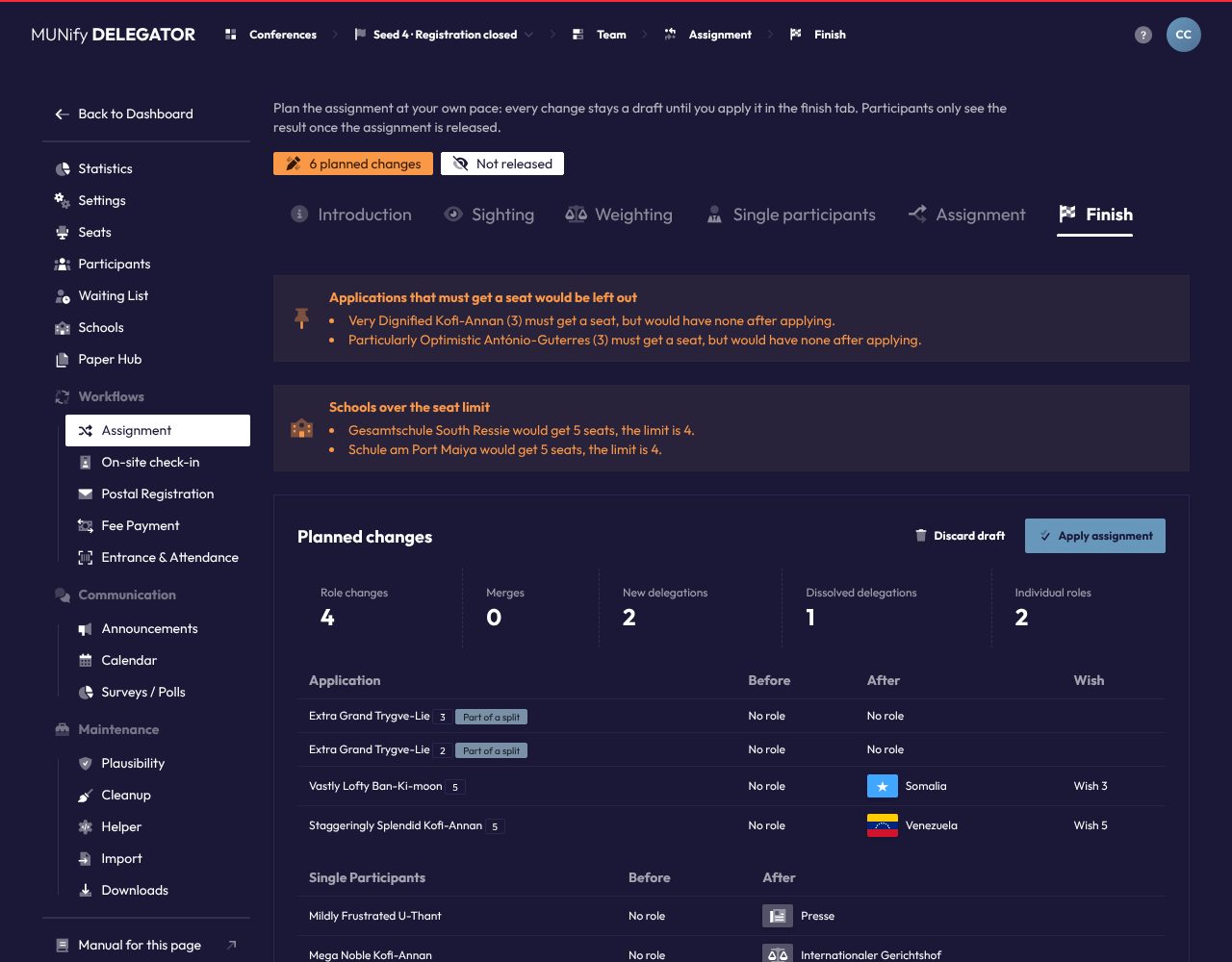
Under Planned changes the page counts Role changes, Merges, New delegations, Dissolved delegations and Individual roles, and lists every group affected with Before and After. Parts of a split, singles as delegations and groups that are merged are labelled.
Above it are problems and warnings:
- These problems prevent applying: a role planned with more people than seats, a split that leaves members without a part, or a delegation that would be dissolved but has already submitted papers.
- Warnings that do not prevent applying: an individual role given more often than it has seats, applications marked Must get a seat that would be left out (checked for the whole conference, not just the board), Every seat would be taken, Groups are split and Too many guaranteed seats at schools abroad.
Leave a few seats free
A few free seats help with the unforeseen and are easy to fill from the waiting list later. Whoever moves up from the waiting list gets the email Moved up from the waiting list once the assignment is released.
Applying
Apply assignment writes the draft into the registrations in one step. The dialog first shows the warnings again and how many seats will be free afterwards. Applying:
- splits and merges delegations, or creates new ones from converted single participants. Members are moved rather than created anew, so supervision and statuses are kept.
- gives and takes away roles. Members whose role changes lose the committee they were seated in.
- deletes delegations left without members.
- clears the draft. Ratings and weights stay.
If the applications change while applying, it stops and you apply again. Discard draft deletes every planned change without applying anything.
Releasing
The card at the bottom shows whether the assignment is released. Until it is, participants count as neither accepted nor rejected. After applying, it reminds you to release.
Release assignment makes the applied roles visible to participants and supervisors, and whoever got no seat counts as rejected. Hide assignment takes the release back, but emails already sent cannot be taken back. Once released, later changes become visible as soon as you apply them.
The draft is never visible
Participants only ever see what has been applied and released. If you keep planning after the release, nothing changes for them until you apply again.
Result emails
Neither applying nor releasing sends emails. After releasing, and after every apply of an assignment that is already released, the page asks Send emails now? and lists what has become due: Acceptance, Rejection, Summary for supervisors and Moved up from the waiting list. Send 12 emails now sends them right away. With Later you send or skip them later in the conference settings under “Emails”. Kinds set to automatic there go out at the latest with the next run.